Optimizing Food Photos for Delivery Apps: A Cross-Platform Checklist
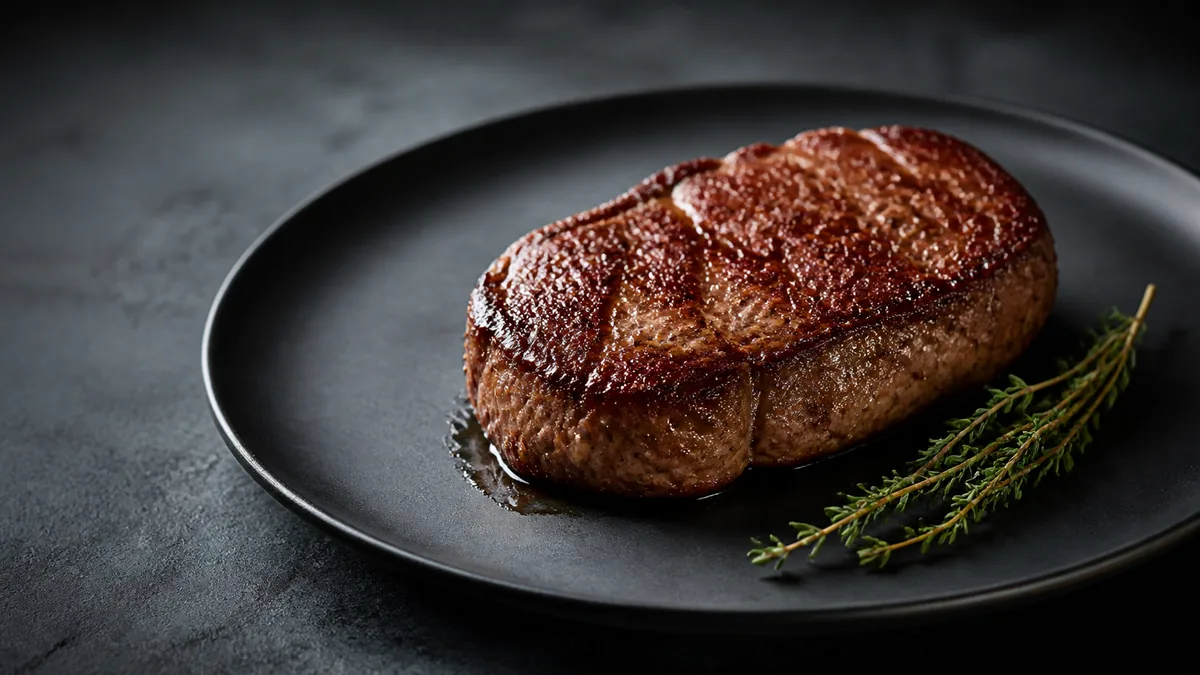
Your delivery photo lives or dies as a tiny thumbnail inside an app you don’t control. Every platform re-crops and re-compresses what you upload, so a photo that looks great on your phone can come out cropped wrong, dim, or soft on DoorDash, Uber Eats, or Grubhub. Delivery app photo optimization is mostly about shooting in a way that survives each platform’s automatic processing — and then exporting once for all of them. This cross-platform checklist gives you a no-rework workflow.
The mindset shift: you’re not making one beautiful photo, you’re making one flexible photo that holds up after the app gets done with it.
Why delivery apps degrade your photos
Three things happen to every upload:
- Auto-crop: the platform forces your image into its thumbnail and hero aspect ratios. If your food was edge-to-edge or off-center, it gets cut.
- Compression: the app re-encodes the file smaller, which softens detail and can introduce artifacts in already-low-quality images.
- Tiny display: the customer first sees the dish at thumbnail size, where clutter and weak lighting read as "low quality" instantly.
Design for the worst case — a small, cropped, compressed thumbnail — and your photos look good everywhere.
Rule 1: Shoot thumbnail-first
Before anything else, ask: does this read at the size of a postage stamp? That means:
- Food fills most of the frame but isn’t jammed to the edges.
- One clear hero element, not a cluttered scene.
- Strong, clean lighting so the dish pops even when shrunk.
If you can’t tell what the dish is at thumbnail size, neither can the customer.
Rule 2: Frame crop-safe
Because every platform crops differently, give them room to crop without hitting the food:
- Keep the dish centered with even margins.
- Leave breathing space on all four sides.
- Avoid placing critical detail (the garnish, the cheese pull) right at an edge.
This single habit means one frame survives a near-square thumbnail, a wider hero banner, and a vertical social crop. For the framing fundamentals behind this, see our menu photo composition rules.
Rule 3: Export big and high quality
Compression hits low-quality files hardest, so start strong:
- Export at least 1400px on the long edge (bigger is fine; platforms downscale).
- Use high JPEG quality or a clean WebP export — don’t pre-compress to tiny files.
- Keep the original sharp; let the platform do the shrinking from a high-quality source.
Rule 4: One shoot, all platforms
Here’s the no-rework workflow:
- Shoot a touch loose, food centered, at your standard angle and lighting.
- Pick the best frame per dish.
- Export the crop set from that single frame:
| Use | Crop | Notes |
|---|---|---|
| App item thumbnail | Near-square | Food centered, safe margins |
| App hero/banner | Wider (16:9-ish) | Room for overlays the app adds |
| Google Business Profile | Near-square | Clean background |
| Social feed | Square | Same hero, tighter |
| Social Stories/Reels | Vertical | Crop top/bottom from the loose frame |
One capture, five outputs, zero reshoots. For platform-specific item vs. hero requirements, our delivery thumbnail playbook and the broader delivery app image-size guide show how to keep this repeatable across a full menu.
Where each platform crops differently
You do not need to memorize pixel specs that change every quarter — you need to understand the shape of each surface so your loose master frame survives all of them. In broad strokes:
| Surface | Typical shape | What kills a photo here |
|---|---|---|
| Item tile (the grid) | Near-square, very small | Off-center food, busy background, weak light |
| Category hero / banner | Wide, short | Critical detail at top/bottom that gets sliced off |
| Cart and checkout | Tiny square | Anything that isn’t instantly recognizable |
| Store header | Very wide | A single dish stretched too far; collages |
The lesson across all four: the more centered and the looser your capture, the more surfaces it survives. A photo built only for the wide banner will get its sides chopped in the square tile, and a photo built edge-to-edge for the tile will lose its garnish in the banner. The crop-safe master frame is what lets one image play every role.
Rule 5: Keep the style consistent
A delivery grid is judged as a whole. Mismatched backgrounds and lighting make even good dishes look thrown together.
- Same background surface across the menu.
- Same angle family and lighting direction.
- Same finish and crop discipline.
Consistency is the difference between "real brand" and "random menu" at thumbnail scale.
A field-test before you publish
The single fastest quality check costs you nothing and catches 90% of delivery-photo problems: shrink it and look at it on a phone. Before any image goes live, export your thumbnail crop, drop it onto your phone’s lock screen or shrink the preview to roughly the size of a fingernail, and ask three questions:
- Can I tell what the dish is in under one second? If you have to squint or guess, the crop is too loose or the scene too busy.
- Does the food still look fresh and hot? Compression exaggerates dull color. A photo that looked fine on the big screen can read grey and tired when shrunk.
- Does the hero element survive? The cheese pull, the crispy edge, the glossy sauce — the thing that makes the dish crave-able has to be visible at thumbnail size, not just at full resolution.
If a photo passes that test, it will hold up across every platform. If it fails, no amount of platform-specific tweaking will save it — fix the capture or the crop instead.
A quick QA checklist before upload
Run every dish through this before it goes on a single platform:
- [ ] Food centered with even margins on all four sides
- [ ] Reads clearly at thumbnail size (the shrink test above)
- [ ] No critical detail touching an edge
- [ ] Exported at 1400px+ on the long edge, high quality
- [ ] Lighting clean and neutral — no yellow or green cast
- [ ] Background consistent with the rest of the menu
- [ ] Looks like the dish the customer will actually receive
That last point is non-negotiable. A delivery photo that oversells leads to a refund request and a one-star review the moment the bag is opened. For a deeper, platform-by-platform version of this, see our delivery photo QA checklist.
Common pitfalls to avoid
- Edge-to-edge framing that gets chopped by auto-crop.
- Off-center food that loses its hero element to the crop.
- Dim, yellow lighting that compression makes muddier.
- Tiny pre-compressed uploads that turn soft and blocky.
- Busy backgrounds that become visual noise at thumbnail size.
Where AI enhancement fits
Most existing menu photos fail one or more of these rules — and reshooting an entire menu is the barrier. FoodPhoto.ai is built for exactly this: upload your real dish photo and it cleans the background, fixes lighting, restores gloss, and re-crops to platform-safe framing — without changing the food. Because it enhances the real photo rather than generating fake food, the optimized listing still matches what arrives. Run one of your current delivery photos through the Menu Test Pack and compare it at thumbnail size.
Optimize for the thumbnail, shoot once, export the crop set, and keep it consistent — that’s the whole game. When you’re ready to bring a full menu up to spec, FoodPhoto.ai pricing starts at ten photos for $10 with plans from $15/month; credits roll over and you can cancel anytime.
Frequently asked questions
What size should delivery app food photos be?
Shoot high resolution and export large — at least 1400px on the long edge — then let each platform downscale. Frame near-square with the food centered and safe margins so the platform’s automatic crop never cuts the dish. Exact specs vary, so always check each app’s current uploader.
Why do my food photos look worse on delivery apps than on my phone?
Delivery apps re-crop and re-compress every upload to fit thumbnails. If you shot edge-to-edge or with the subject off-center, the auto-crop chops the food. Loose, centered framing and a clean high-resolution export survive that processing.
How do I avoid reshooting for each delivery platform?
Shoot once, slightly loose, with the food centered, then export the few crops every platform needs from that single frame. A thumbnail-first, crop-safe capture means one shoot covers DoorDash, Uber Eats, Grubhub, Google, and social.
Can AI optimize my existing delivery photos?
Yes. FoodPhoto.ai cleans backgrounds, fixes lighting, and re-crops to platform-safe framing while enhancing the real dish — not generating fake food. It’s a fast way to bring an existing menu up to thumbnail-ready quality.