Uber Eats Photo Requirements (2026): Sizes, Crops, and Quick QA
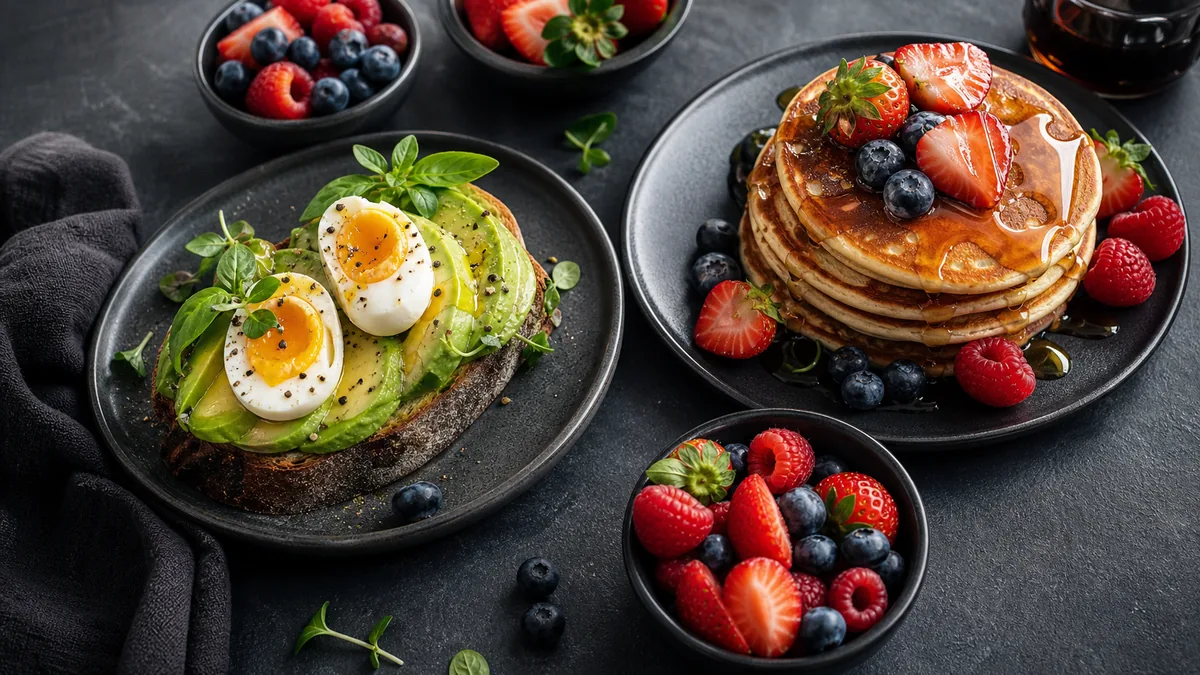
Uber Eats is a thumbnail game. A hungry customer scrolls a wall of tiles and decides in a fraction of a second — so meeting the Uber Eats photo requirements isn't about pixel-peeping, it's about making sure your dish reads instantly, stays sharp, and never gets awkwardly cropped. This guide covers the sizes that matter in 2026, the safe-crop rules that prevent ugly tiles, and a fast QA checklist before you upload.
Recommended specs (and how to stay current)
Delivery platforms adjust their image dimensions periodically, so the safest approach is to export big and clean, then let the platform crop. Practical defaults that hold up well:
- Resolution: export with the long edge around 1200px or larger so the photo stays crisp on retina screens.
- Aspect: shoot and frame for a near-square or landscape tile, since that's how most Uber Eats menu items render.
- File: upload a sharp, optimized image — not an oversized raw export and not a blurry, over-compressed one.
Always confirm against the spec shown in your Uber Eats Manager when you upload, because the displayed crop can change. For a side-by-side of how every major platform crops, see our delivery app photo guidelines and image sizes guide.
Crop rules that prevent ugly thumbnails
The single most common Uber Eats photo mistake is losing the hero ingredient to an auto-crop. Three rules fix it:
- Center the hero. Put the main element of the dish in the middle of the frame so a center crop can't cut it.
- Keep details away from the edges. Labels, garnishes, and the "best" part of the plate should sit inside a safe margin, not at the frame border.
- Don't rely on tiny details. A delicate microgreen garnish disappears at thumbnail size. Lead with bold shape, color, and texture that survive being small.
Shoot a little wider than you think you need. That margin is what lets one photo crop cleanly into Uber Eats' recommended 5:4 to 6:4 range, a landscape banner, and a website hero without reshooting.
Quick QA checklist before uploading
Run every photo through this five-point check. It takes 20 seconds and prevents the listings that quietly lose orders:
- Sharp focus — zoom in once to confirm the dish is crisp, not soft.
- Accurate color — no yellow or green kitchen-light cast; the food should look like it does in real life.
- Clean background — no clutter, no hands, no random table items.
- No text or watermarks — Uber Eats favors clean photos, and overlays clutter the tile.
- Reads at thumbnail size — shrink it down; if you can't tell what it is, neither can the customer. This is the real test.
The fastest workflow
You don't need a separate shoot for Uber Eats. Fold it into one routine:
- Shoot your priority dishes in consistent soft light during a slow window.
- Enhance each photo to fix lighting, color, gloss, and crop.
- Export an Uber Eats-friendly 5:4 to 6:4 crop plus wider website and social variants.
- Upload and verify each tile in the app preview.
This is where an enhancement step saves the most time. FoodPhoto.ai takes a real phone photo of your real dish and corrects the lighting, background, color, and crop without changing the food — honest enhancement, not fabrication. That keeps your tile both compliant and accurate to what the customer receives, which protects your ratings. You can test it on one of your own dishes with the paid Menu Test Pack.
Common Uber Eats photo problems and fixes
| Problem | Cause | Fix |
|---|---|---|
| Dish looks cut off | Hero too close to the edge | Re-shoot wider, center the subject |
| Yellow, tired food | Mixed kitchen lighting | Shoot near a window; correct color in enhancement |
| Blurry tile | Low-res or soft-focus upload | Export 1200px+, confirm focus before upload |
| Tile looks dull | Flat lighting, busy background | Add soft side light; clean the surface |
| Inconsistent menu | Different look per dish | Match angle and light; enhance the batch together |
What makes an Uber Eats photo win the tap
Beyond hitting the specs, a handful of qualities reliably separate the tiles that earn taps from the ones customers scroll past:
- Bold, recognizable shape. The dish should be instantly identifiable — a burger that reads as a burger, not an abstract brown shape. Lead with the item's most recognizable silhouette.
- Color contrast. A dish that pops against its background stands out in a dense grid. A pale sandwich on a pale plate on a pale table disappears.
- Appetizing texture. Visible gloss on sauce, char on a grill mark, steam-fresh edges — these are the appetite triggers that survive at thumbnail size.
- Brightness without blowout. Bright tiles outperform dark, moody ones on delivery rails, but don't let highlights clip to pure white and lose detail.
- A single clear subject. One dish per tile. Spreads and combos read as clutter at small size; save those for catering or bundle listings.
The tile that reads fastest and looks freshest wins the tap — every spec rule above exists to protect those two qualities.
Don't let your tiles contradict the food
The fastest way to tank your Uber Eats rating is a photo that oversells. If the tile shows a towering, glossy burger and a flat, dry one arrives, that gap shows up in reviews and refunds. This is exactly why honest enhancement matters: the goal is to show your real dish at its genuine best, not to fabricate a different dish. Bright, sharp, accurate photos lift orders and keep ratings healthy, which is what actually compounds over time.
One master, many crops (Uber Eats and beyond)
The single biggest time-saver is to stop shooting per-platform. Capture each dish once, build one clean master, and export crops from it: 5:4 to 6:4 for Uber Eats, 16:9 for DoorDash, a wider version for banners and your website, and a vertical for social. A master shot a little loose covers both delivery apps without a reshoot. When Uber Eats adjusts a dimension, you re-export instead of re-shooting.
Keeping masters and exports straight is its own small discipline — a predictable file naming convention stops the final_FINAL_v2 chaos and tells you at a glance which file is current. For the cross-platform sizing details, the DoorDash + Uber Eats requirements guide lays out both side by side.
Priority order: where to start
You don't refresh the whole menu at once. Publish in impact order so the effort pays off fastest:
- Top sellers — they get the most views, so a better tile moves the most orders.
- High-margin items — a cleaner photo here lifts the orders worth the most to you.
- Specials and add-ons — drinks and desserts especially get tacked onto orders when the tile looks good.
A handful of strong tiles on your busiest items beats a full menu of mediocre ones, and it lets you measure the lift before committing to the whole catalog.
Make it consistent across the menu
A menu where every tile shares the same light, angle, and color reads as a single, trustworthy brand — and that consistency lifts the whole listing, not just one dish. The easiest way to get there is to batch-shoot and batch-enhance so the set looks uniform. For a delivery-specific deep dive on winning the scroll, our delivery app photo guidelines and catering and family meal photos guides go further on tiles and bundles.
Meeting the Uber Eats photo requirements comes down to three habits: export sharp and large, center the hero with safe margins, and QA at thumbnail size before you upload. Do that and your tiles win more taps with the food you already make.
Try it on one of your dishes with the Menu Test Pack, and when you're ready to refresh your whole Uber Eats menu, pricing starts at $10 for a 5-photo Menu Test Pack with plans from $15/month.
Frequently asked questions
What size should Uber Eats photos be?
Upload a high-resolution image that follows Uber Eats' recommended 5:4 to 6:4 range. The official guidance allows images from 550x440px up to 10000x10000px, with files up to 10MB, so export a clean landscape crop with the dish centered and enough margin for app previews.
Why do my Uber Eats photos look cropped or cut off?
Uber Eats auto-crops uploads to fit its tile, so anything near the edges can be cut. Center the hero ingredient and leave safe margin around it. If a garnish or label sits at the frame edge, the thumbnail will likely clip it.
Does photo quality affect Uber Eats sales?
Yes. The thumbnail is the first and often only thing a hungry customer evaluates before scrolling past. Sharp, bright, accurately colored photos that read instantly at small size earn more taps than dark, cluttered, or blurry ones.
Can I use the same photo for Uber Eats and DoorDash?
Often yes, if you shoot a little wide and center the dish. Both platforms favor a square-ish, thumbnail-first crop. Export a clean square plus a slightly wider version so you can cover both without reshooting.