iPhone Food Photography for Restaurants: A Practical 2026 Workflow
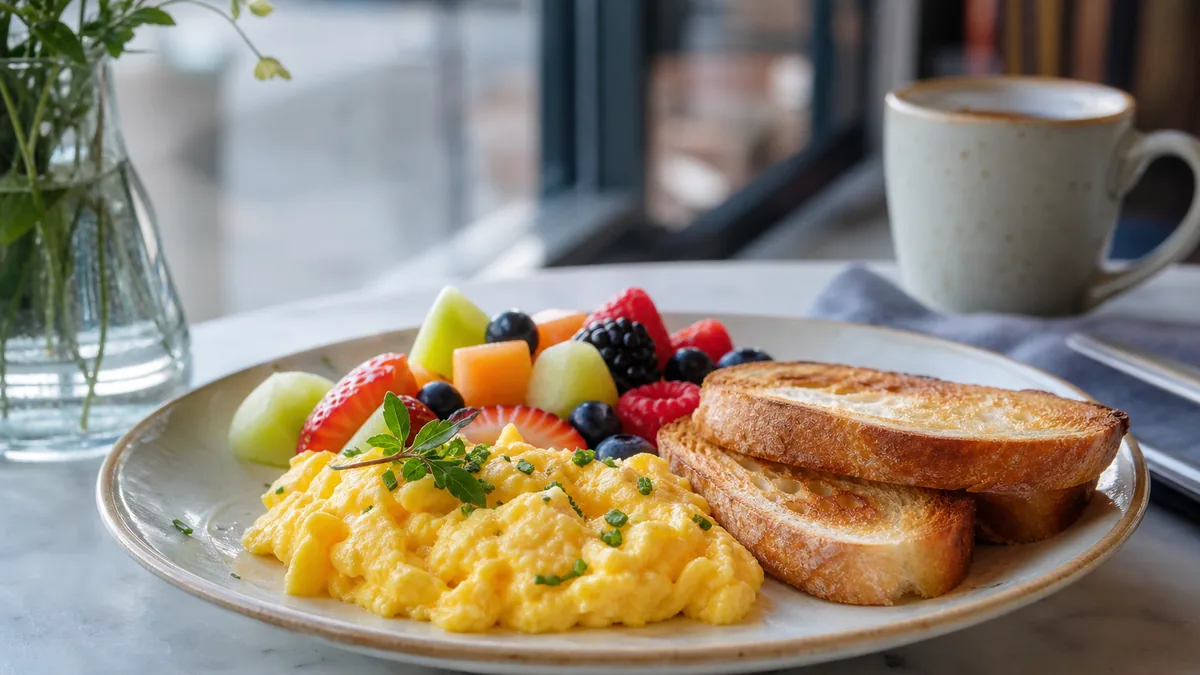
You do not need a camera bag to photograph a restaurant menu. A modern iPhone, used with a simple workflow, produces menu-ready food photography for delivery apps, your website, and social. The trick is not a secret setting — it is repeatable conditions and a process you can run in one session. This is the practical 2026 workflow for restaurant owners and operators who need consistent photos fast.
Here is the short version: build a tiny photo station with window light, a clean surface, and a white foam board; shoot the same three angles for every dish so your menu looks consistent; then enhance and export platform crops so DoorDash, Uber Eats, and Instagram each get the right format.
The 10-minute photo station
You do not need a studio — you need repeatable light. Set this up once and leave it for the week:
- Put a small table two to three feet from a window so the light comes from the side, not behind the dish.
- Use one background you can keep all week — white, light wood, or a neutral stone.
- Hold (or clamp) a white foam board opposite the window to bounce light back and soften shadows.
- Turn off mixed overhead lights if they add a yellow or green cast.
That is the entire rig. Side window light plus a bounce card is the same logic studios use, scaled to a kitchen. For the lighting fundamentals behind it, see our restaurant lighting guide, and for cheap surface options, the budget backdrops guide.
iPhone settings that actually matter
Most “iPhone food photography” advice over-complicates this. Only a few things move the needle:
- Clean the lens. Phones live in pockets and aprons; a smudge softens every shot. Wipe it first.
- Turn on the grid and keep the plate centered with space around the edges. Crops happen later, so leave margin.
- Tap to focus on the hero ingredient, then slide exposure down slightly so highlights on sauce, cheese, or glaze do not blow out to pure white.
- Avoid the ultra-wide (0.5×) lens. It distorts plates and bowls and makes portions look wrong. Use the main 1× lens.
- Keep a consistent distance for every dish so they look like they belong to the same menu.
Lock these in and your photos already look deliberate instead of accidental.
A fast shot list for a full menu
Speed comes from a fixed shot list. For each item, take 8 to 12 frames and keep one winner. Shoot the same three angles every time so the menu stays consistent:
- 45° angle — the default for most dishes (burgers, plates, stacks).
- Overhead (top-down) — for bowls, salads, pizzas, and platters.
- Close texture — crisp edges, sauce, melt, or steam, for hero items and social.
If you only have 20 minutes, shoot your top-selling items first and stop when you have ten strong photos. Prioritizing by revenue means the photos customers see most get fixed first. For a structured cadence around this, the weekly photo sprint approach turns one session into assets for every channel.
From camera roll to menu: the repeatable workflow
A good shot is only half the job. The workflow that keeps a menu consistent is five steps:
- Shoot in one session — same light, same surface, same distance — so the whole set matches.
- Pick the best frame for each dish: sharp, clean, centered.
- Enhance lighting and clean the background. Lift dark shadows, neutralize color casts, and remove clutter without changing the food.
- Export platform crops — DoorDash and Uber Eats sizes plus square and 4:5 for social.
- Upload and spot-check on a phone. Thumbnails matter far more than a zoomed-in view, so judge each photo at tile size.
This is where in-house AI enhancement saves the most time. You capture honest iPhone photos of the real dishes, then enhance lighting, background, and crop consistently so every item matches — without booking a photographer or changing the food. Keep one high-resolution master per dish and export the crops from it.
Common iPhone mistakes to avoid
A few recurring errors undo good light:
- Shooting under mixed lighting — window light plus warm overheads creates an uneven color cast. Pick one source.
- Backlighting the dish — light behind the food creates a dark, flat front. Move to side light.
- Over-filtering in the camera app — auto filters push saturation until reds go nuclear and the food looks fake. Keep color honest.
- Forgetting the crop — a beautiful 16:9 photo is useless if the platform shows a square tile. Always export to the destination’s aspect ratio. A quick delivery app QA pass catches these before upload.
A realistic shooting schedule
You do not need to photograph the whole menu in one heroic session. Spread it across short, repeatable blocks:
- Day one: set up the photo station and shoot your top eight to ten sellers. These are the photos that move the most revenue, so they go first.
- Day two: shoot high-margin items and current specials. These are where better photos most change what customers choose.
- Ongoing: add one or two new items each week as the menu evolves, re-using the same station and settings so everything still matches.
This rhythm keeps the menu fresh without ever feeling like a project. A new special gets photographed the same week it launches, in the same look as everything else, in about ten minutes.
What an iPhone can and cannot do
Being honest about the tool saves frustration. An iPhone is genuinely good enough for menu photos — sharp sensors, good dynamic range, and a portrait mode that handles depth nicely. What it cannot do is invent good light or fix a cluttered scene. The phone captures what is in front of it; the station and your settings control whether that is flattering. So the effort belongs in the setup, not in chasing camera specs.
The one place the phone reaches its limit is the imperfect conditions of a real kitchen: a window in the wrong spot, mixed light you cannot fully kill, a few minutes between services. That is where the enhancement step earns its keep — evening out lighting and cleaning the background so the final image looks like it came from a controlled set, without changing the food.
Keep it consistent over time
The hardest part of restaurant photography is not one good photo — it is the tenth dish looking like the first. Standardize the station, the angles, the distance, and the editing, and you get a menu that reads as one premium brand. Re-shoot or re-enhance an item only when the recipe, plating, or a special changes.
When you are ready to make the enhancement step effortless, you can test it on your own iPhone photos with a one-time $10 Menu Test Pack (10 credits); plans start at $15/month (50 credits) and credits roll over — see the pricing page. Or drop a real photo into the Menu Test Pack and watch a phone shot become menu-ready in seconds.
Need consistent menu photos without a full reshoot? Start with real dish photos and improve lighting, background, and platform-ready crops in the FoodPhoto.ai studio.
FAQ
What iPhone settings are best for food photography?
Clean the lens first, turn on the grid, and keep the plate centered with breathing room for later crops. Tap to focus on the hero ingredient, then drag exposure down slightly so highlights on sauce or cheese do not blow out. Avoid the 0.5x ultra-wide lens because it distorts plates and bowls, and keep a consistent shooting distance so the whole menu matches.
How do I take consistent menu photos with an iPhone?
Build a small photo station — window light, one clean background surface, and a white foam board — and shoot every dish the same way: same angles, same distance, same surface, same session. Consistency comes from repeatable conditions, not from chasing one perfect shot. Then enhance and export the same crop sizes for every item.
Do I need a tripod for iPhone food photos?
It helps but is not mandatory. A phone tripod keeps your distance and angle consistent across dozens of dishes, which is what makes a menu look like one brand. If you shoot handheld, brace your elbows on the table and keep the same distance for each shot to stay consistent.
Can I use iPhone photos for DoorDash and Uber Eats?
Yes. A clean, well-lit iPhone photo is plenty for delivery apps as long as it reads at thumbnail size and you export the right crop. Shoot with margin around the dish, then export the platform's required aspect ratio so the app does not crop your garnish off.